
Add a competitor and find its pages
To add a competitor, open Track new, enter its root domain and choose Track competitor. PMM Tools finds the site’s pages through its sitemap, robots.txt, navigation and footer, sorts them into research categories, and starts capturing the ones that matter for competitive analysis. You review the result on the competitor’s URLs tab.
Add the domain
Open Track new
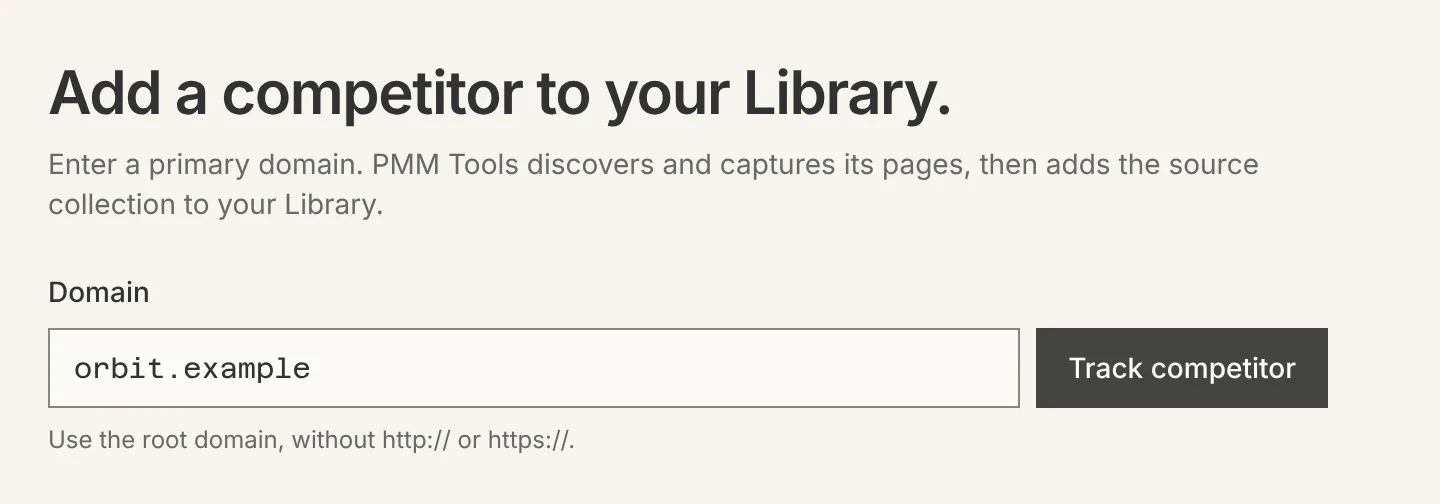
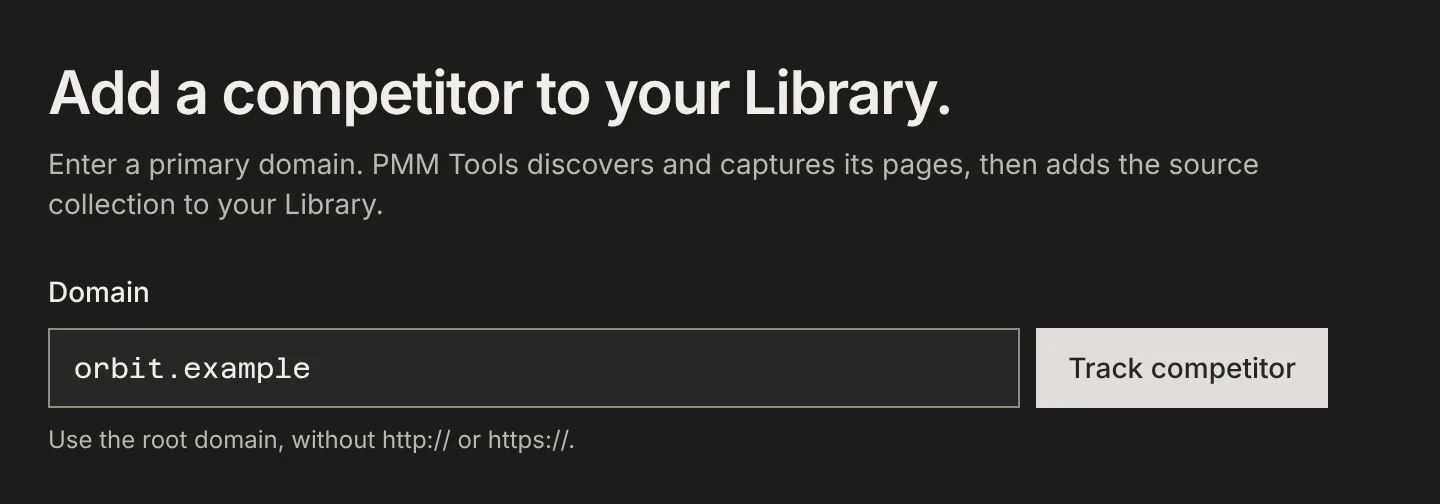
In the top navigation, choose Track new. You land on “Add a competitor to your Library.”
Enter the root domain
Type the domain without http:// or https://, for example orbit.example, and choose Track competitor.
Watch the first run
The competitor appears in your Library while it runs. A Live run tab shows pages being found, sorted and captured.
Review the URL collection
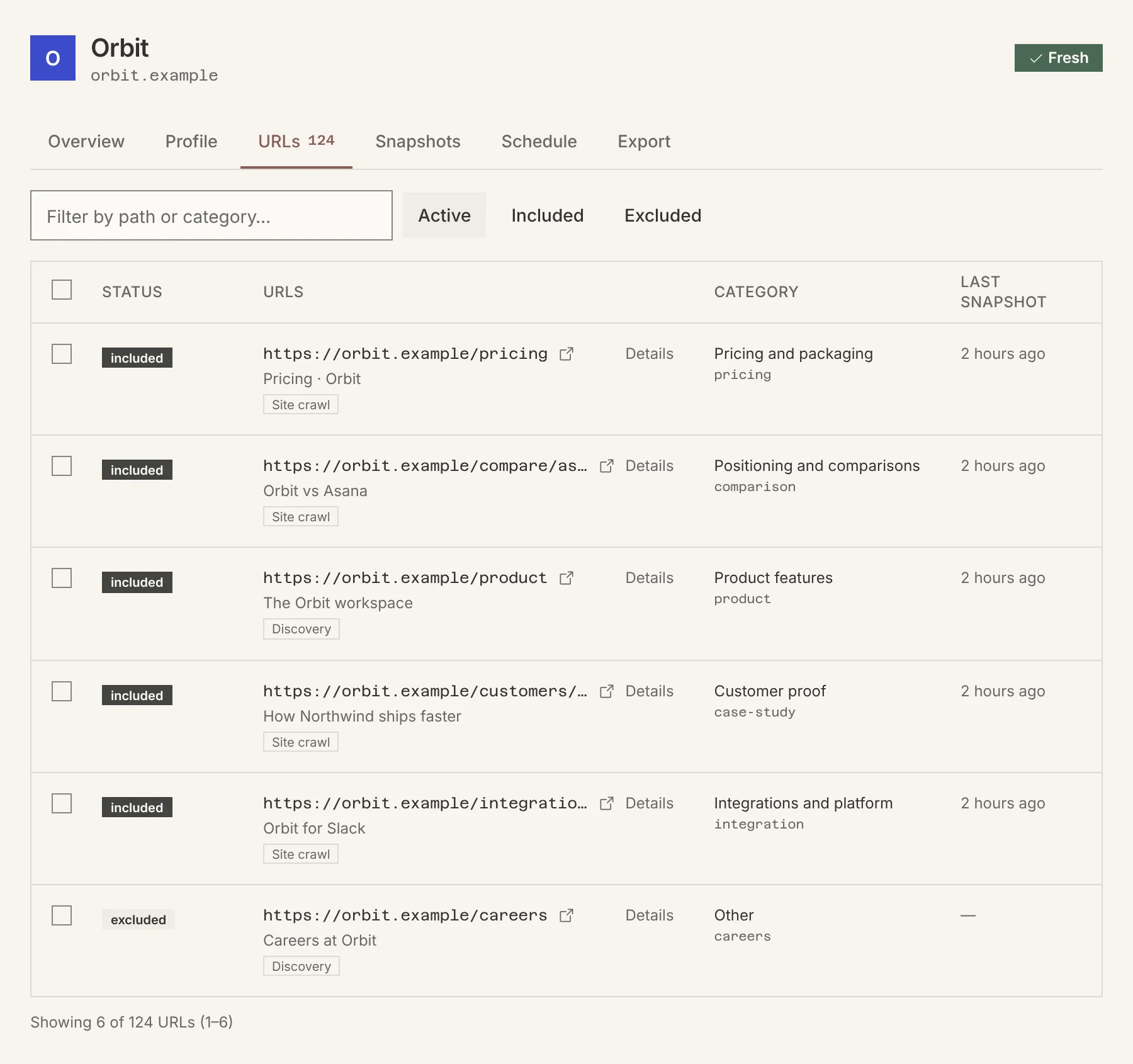
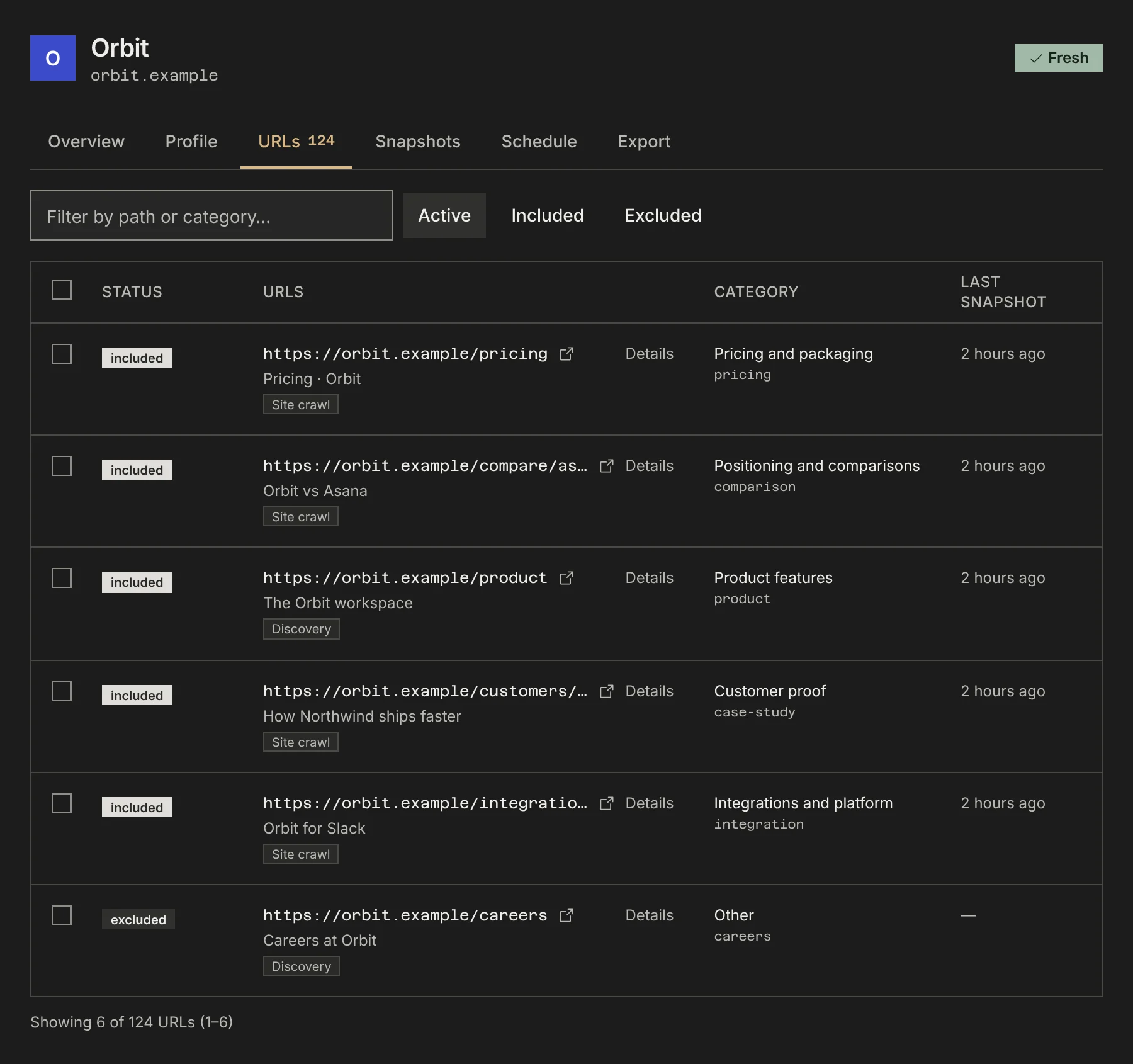
Open the competitor and choose the URLs tab. Each row shows the page, where it was found, its research category, its status and when it was last captured.
Status is included, excluded or auto. Auto means discovery found the page and you have not decided on it; whether it is captured follows its category’s default. Include a page to capture it every run, or exclude it to drop it. Your decisions carry forward, so later runs never undo them.
Filter by path or category to find pages fast, and use Add URLs for pages discovery cannot see, such as a pricing page on a different domain.
Check coverage
The Overview tab’s Coverage section counts, per research question, how many pages were found and how many were captured, and why the rest were not. Use it to spot a thin category before you start asking your AI questions.
Do it over MCP
Everything above also works from your AI client. These tools do the same job; see the MCP quickstart to connect.
pmm_competitor_createpmm_competitor_get_urlspmm_competitor_add_urlspmm_competitor_remove_urlspmm_competitor_coverage
“Add orbit.example as a competitor in PMM Tools and tell me which research categories have the fewest captured pages.”
Calls:
pmm_competitor_create,pmm_competitor_coverage“Add orbit.example/pricing/enterprise to Orbit’s pages in PMM Tools and remove the careers pages.”
Calls:
pmm_competitor_add_urls,pmm_competitor_remove_urls
Questions
What if the competitor has no sitemap?
Discovery falls back to the links in the site’s navigation and footer. You can also add any page by hand on the URLs tab, or from your browser with the PMM Tools Chrome extension.
How many pages can I track?
Each plan keeps a set number of pages fresh across the whole account, from 500 on the smallest plan. Coverage warns you when a site has more pages than your plan has room for.